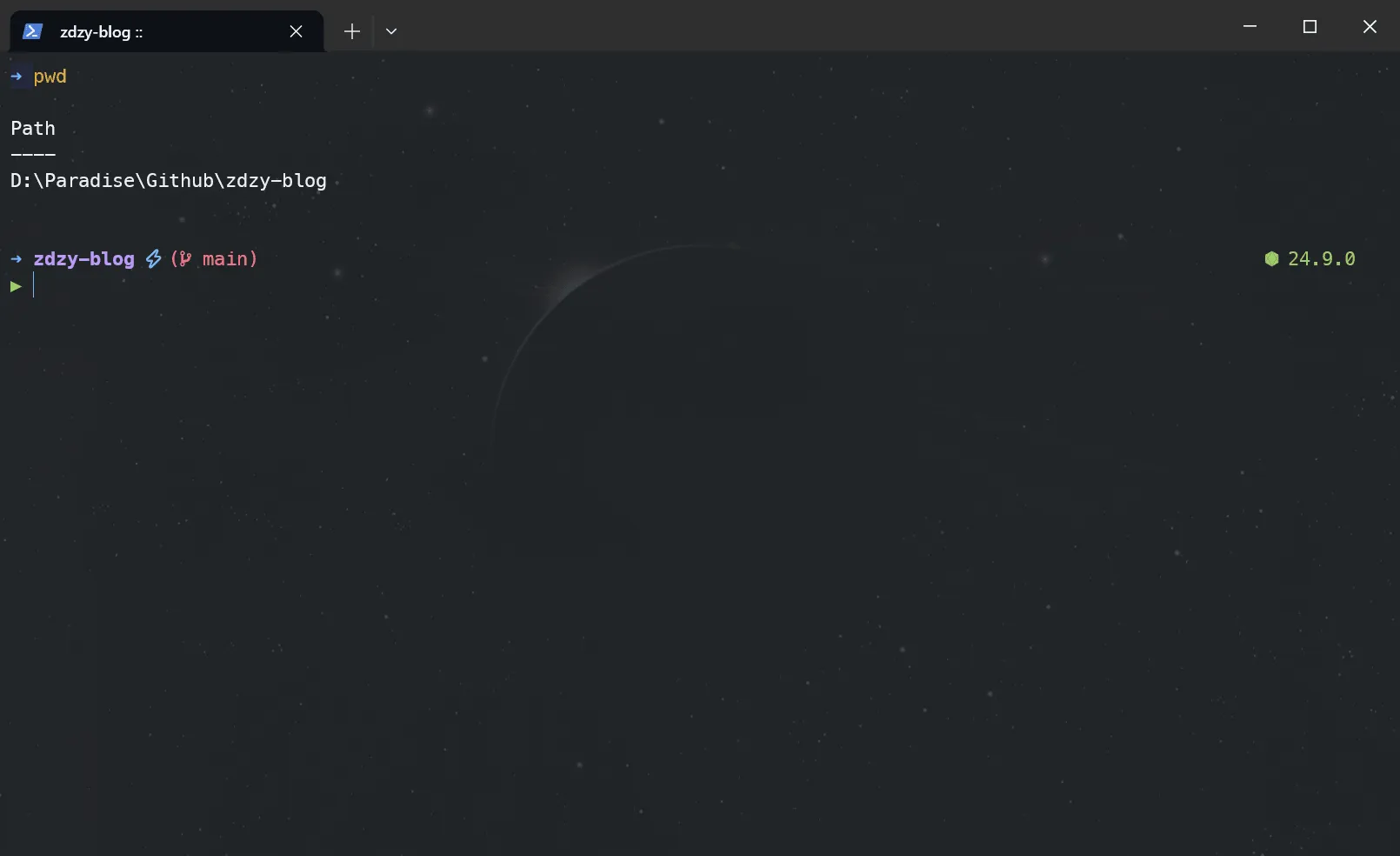
Windows 终端美化指南
一份给新手的全自动 Windows 终端美化指南,让你的命令行不再难看
适用人群:后端 / DevOps / 前端,只要你在 Windows 上敲命令行。
环境要求:Windows 10(1809+)或 Windows 11,winget 可用,PowerShell 5.1 或 7。
两条路线:Part 1 用 CodeX 全自动(约 5 分钟,零手工);Part 2 手动模式(约 20 分钟,每一步都知道自己在干什么)。
0. 先讲原理:终端美化到底在美化什么#
按第一性原理拆,终端长得丑只有三个层面的问题,对应三个独立组件:
| 层 | 组件 | 解决什么 |
|---|---|---|
| 字体层 | Nerd Font | 终端里的图标(git 分支、文件夹、锁、云)本质是 Unicode 私有区字形,普通字体没有这些字形,所以显示成方块 ▯。Nerd Font = 普通等宽字体 + 几千个图标字形 |
| 提示符层 | oh-my-posh | 命令行开头的 PS C:\Users\xxx> 太丑且信息量低。oh-my-posh 用主题引擎把提示符渲染成”信息卡片”:git 分支/状态、Python venv、执行耗时、时间、云环境…… |
| 外壳层 | Windows Terminal | 终端模拟器本身:字体指定、配色方案、透明度/毛玻璃、背景图、标签页。这是承载前两层的画布 |
三者缺一不可:字体没装对 → 图标乱码;oh-my-posh 没配 → 提示符还是老样子;WT 没指定字体 → 前面白干。
后面所有步骤,都是围绕这三层做配置。理解了这个模型,出任何问题都能定位到层。
Part 1 · CodeX 全自动美化#
1.1 一次性前提(只需一次)#
- 确认 winget 可用:
winget --version(Win11 自带;Win10 商店版 WT 里一般也有) - 准备一个管理员 PowerShell 窗口(右键开始菜单 → 终端(管理员))
- 目标 Shell 建议 PowerShell 7(
winget install Microsoft.PowerShell,可选但推荐,体验差异明显)
1.2 给 CodeX 的 Prompt(直接复制)#
把下面整段丢给 CodeX,它会在当前机器上完成全部安装配置:
# 角色
你是一名 Windows 终端美化专家,熟悉 winget、PowerShell、oh-my-posh 和 Windows Terminal。

# 任务
在当前 Windows 机器上完成终端美化,共四件事,按顺序执行:
1. 安装 Windows Terminal(若已安装则跳过)
2. 安装 Nerd Font:MesloLGM Nerd Font
3. 安装 oh-my-posh 并配置 PowerShell 提示符主题
4. 配置 Windows Terminal 外观(Nerd Font 字体 + GitHub Dark 配色方案)

# 执行要求
1. **幂等**:每一步先检查是否已安装(winget list / Test-Path),已装且版本不旧就跳过,不要重复安装。
2. **安装命令**统一带 --accept-source-agreements --accept-package-agreements:
   - Windows Terminal:winget install --id Microsoft.WindowsTerminal -e --accept-source-agreements --accept-package-agreements
   - oh-my-posh:winget install --id JanDeDobbeleer.OhMyPosh -e --source winget --accept-source-agreements --accept-package-agreements
3. **PATH 坑**:winget 装完 oh-my-posh 后当前会话 PATH 未刷新,直接用完整路径调用:
   $env:LOCALAPPDATA\Programs\oh-my-posh\bin\oh-my-posh.exe
4. **Nerd Font**:用 oh-my-posh 内置安装器,非交互指定 meslo。注意:30.x 版本已移除 --user 参数,直接 font install 即可,默认在当前用户上下文安装、无需管理员:
   $env:LOCALAPPDATA\Programs\oh-my-posh\bin\oh-my-posh.exe font install meslo
5. **PowerShell Profile**:
   a. 先确保执行策略:Set-ExecutionPolicy -ExecutionPolicy RemoteSigned -Scope CurrentUser -Force
   b. $PROFILE 不存在则创建(目录也建)
   c. 在 $PROFILE 追加一行(默认主题 tokyo-night,若 $env:POSH_THEMES_PATH 不存在则回退 jandedobbeleer):
      oh-my-posh init pwsh --config "$env:POSH_THEMES_PATH\tokyo-night.omp.json" | Invoke-Expression
6. **Windows Terminal settings.json**:
   - 路径优先找 %LOCALAPPDATA%\Microsoft\Windows Terminal\settings.json,找不到再找 %LOCALAPPDATA%\Packages\Microsoft.WindowsTerminal_8wekyb3d8bbwe\LocalState\settings.json
   - 该文件是 JSONC(带注释),**用文本方式增量修改,保留原有内容**,不要用 ConvertFrom-Json 解析(会丢注释)
   - 在 profiles.defaults 里设置:font.face = "MesloLGM Nerd Font",font.size = 11
   - 在 schemes 数组里新增一个名为 "GitHub Dark" 的配色方案(background #0d1117、foreground #e6edf3,GitHub 官方 Dark 色板),并在 profiles.defaults 里设置 colorScheme = "GitHub Dark"
   - 若已存在同名配置,直接覆盖为上述值
7. **不要动**其他 profile、快捷键、启动配置。

# 验证(必须执行)
1. 新开一个 PowerShell 窗口,确认提示符已变成 tokyo-night 主题样式、无报错、无乱码方块
2. 确认 Windows Terminal 设置里字体为 MesloLGM Nerd Font
3. 输出最终报告:装了什么、主题名、$PROFILE 路径、settings.json 路径、每条验证结果

# 约束
- 全程不需要我确认,遇到小问题自行解决并记录
- 只做终端美化相关改动,禁止改动其他系统配置
- 如果某步失败,说明原因和手动兜底命令,不要反复重试1.3 Prompt 为什么这么写(内部要点)#
- 幂等优先:分享给团队用,很多人其实已经装过一半,Agent 需要”检查→跳过”,否则会报”已安装”错误或重复装。
- PATH 刷新陷阱:winget 装完的 exe 当前会话找不到,这是 Agent 自动化最常见的翻车点,所以要求用完整路径。
- 免管理员装字体:新版
font install默认就在当前用户上下文安装(旧版--user参数在 30.x 已移除),避免权限弹窗卡死流程;装完可用注册表确认(见 2.2)。 - JSONC 增量修改:WT 的 settings.json 带注释,用 JSON 解析器会破坏文件;要求文本级修改是保命条款。
- 验证闭环:要求 Agent 新开窗口自检 + 输出报告,而不是”装完就跑”。
1.4 执行后自检清单#
- 新开 PowerShell,提示符显示主题样式(不再是
PS C:\Users\xxx>) - git 仓库目录下能显示分支名和状态图标
- 没有
▯方块乱码 - 终端背景是 GitHub Dark 深色
#0d1117 - 字体是 MesloLGM Nerd Font(设置 → 外观里可查)
1.5 Agent 卡住时的手动兜底#
如果 Agent 中途失败,直接手动执行这几条(管理员 PowerShell):
winget install --id JanDeDobbeleer.OhMyPosh -e --source winget
$env:Path = [System.Environment]::GetEnvironmentVariable("Path","Machine") + ";" + [System.Environment]::GetEnvironmentVariable("Path","User")
oh-my-posh font install meslo
notepad $PROFILE # 粘贴:oh-my-posh init pwsh --config "$env:POSH_THEMES_PATH\tokyo-night.omp.json" | Invoke-Expression然后按 Part 2 的 2.6 手动配 Windows Terminal 字体和配色。
Part 2 · 手动模式(逐步指南)#
2.1 安装 Windows Terminal#
Win11 通常自带;Win10 或想要最新版:
winget install --id Microsoft.WindowsTerminal -e --accept-source-agreements --accept-package-agreements安装完成后,以后所有操作都在 Windows Terminal 里进行(别再用老的 conhost 窗口)。
顺便:装 PowerShell 7 会明显提升体验(补全、颜色、速度),同样一条命令:
winget install Microsoft.PowerShell
2.2 安装 Nerd Font(字体层)#
推荐 Meslo(oh-my-posh 官方推荐,图标兼容性最好)。三种方式任选:
方式 A:oh-my-posh 内置安装器(推荐)——需要先装 oh-my-posh(见 2.3),再回来执行:
oh-my-posh font install meslo          # 默认装到当前用户字体目录,无需管理员
# 或
oh-my-posh font install # 交互式列表,方向键选择版本说明:早期版本用
--user/--admin参数控制安装范围,新版(30.x)已移除这些参数,直接font install <名称>即可,默认在当前用户上下文安装。装完可查当前用户字体注册表确认:powershell$fonts = Get-ItemProperty 'HKCU:\Software\Microsoft\Windows NT\CurrentVersion\Fonts' $fonts.PSObject.Properties | Where-Object { $_.Name -match 'Meslo' } | Select-Object Name, Value输出中出现
MesloLGM Nerd Font (TrueType)之类的条目即安装成功。
方式 B:winget 直接装(无需先装 oh-my-posh):
winget install JanDeDobbeleer.MesloLGSNerdFont方式 C:手动下载:https://www.nerdfonts.com/font-downloads ↗ → 下载 Meslo 或你喜欢的字体 → 解压 → 右键安装(或拖入 C:\Windows\Fonts)。
装完必须在终端里指定该字体(见 2.6),否则图标还是方块。
常见字体选择:MesloLGM Nerd Font(最稳)、FiraCode Nerd Font(有连字,写代码好看)、JetBrainsMono Nerd Font、CaskaydiaCove Nerd Font。 ⚠️ 不要选名字带 “PL” 的(如 Cascadia Code PL)——它不含图标字形,正是乱码来源。
2.3 安装 oh-my-posh(提示符层)#
winget install JanDeDobbeleer.OhMyPosh -s winget --accept-source-agreements --accept-package-agreements装完关闭并重开终端(刷新 PATH),验证:
oh-my-posh version
oh-my-posh get shell如果提示”不是内部或外部命令”,手动刷新 PATH:
$env:Path = [System.Environment]::GetEnvironmentVariable("Path","Machine") + ";" + [System.Environment]::GetEnvironmentVariable("Path","User")其他安装方式:Microsoft Store(自动更新)、
scoop install oh-my-posh、choco install oh-my-posh -y。
2.4 初始化 PowerShell Profile#
$PROFILE 相当于 Linux 的 ~/.zshrc,PowerShell 每次启动都会执行它。oh-my-posh 要在这里”注入”。
① 放开执行策略(当前用户):
Set-ExecutionPolicy -ExecutionPolicy RemoteSigned -Scope CurrentUser② 创建 Profile(如果不存在):
if (!(Test-Path $PROFILE)) {
  New-Item -ItemType File -Path $PROFILE -Force
}③ 编辑并加入初始化行:
notepad $PROFILE # 或 code $PROFILE在文件末尾粘贴:
oh-my-posh init pwsh --config "$env:POSH_THEMES_PATH\jandedobbeleer.omp.json" | Invoke-Expression保存后重开终端,或直接生效:
. $PROFILE提示符应该立刻变成主题样式。
2.5 选择与切换主题#
内置主题都在 $env:POSH_THEMES_PATH 目录下。查看全部:
Get-ChildItem $env:POSH_THEMES_PATH -Filter "*.omp.json" | Select-Object Name也可以先看效果再选:官方预览页 https://ohmyposh.dev/docs/themes ↗ 每个主题都有截图。
热门主题速查表:
| 主题 | 风格 | 适合 |
|---|---|---|
jandedobbeleer | 功能最全,信息密度高(git/时间/云/电池) | 默认首选,先跑起来 |
tokyo-night | 深蓝紫渐变,程序员主流审美 | 追求好看 |
catppuccin | 柔和粉紫,高级感 | 长期用不腻 |
cloud-native-azure | 云原生蓝白 | DevOps 场景 |
atomic | 现代极简单行 | 屏幕空间紧张 |
montys | 双行布局:上行全信息、下行输入 | 信息强迫症 |
slim | 极简,信息最少 | 极致性能/极简党 |
powerlevel10k_rainbow | 彩虹分段,zsh p10k 风格 | 从 Linux 迁移过来的人 |
gruvbox-powerline | 复古暖色 | Vim 党 |
cyberdream | 赛博霓虹 | 图一乐 |
切换主题:改 2.4 里那一行,把主题名换掉即可,例如:
oh-my-posh init pwsh --config "$env:POSH_THEMES_PATH\tokyo-night.omp.json" | Invoke-Expression
. $PROFILE # 立即生效想深度定制(增删 segment、改颜色、加自定义图标):
oh-my-posh config export导出当前主题为~/mytheme.omp.json,改 JSON 后把--config指过去。官方文档 https://ohmyposh.dev/docs/ ↗
2.6 配置 Windows Terminal 外观(外壳层)#
打开配置文件#
- 快捷键
Ctrl + Shift + ,直接打开 settings.json;或设置 → 打开 JSON 文件。 - 新版路径:
%LOCALAPPDATA%\Microsoft\Windows Terminal\settings.json - 旧版路径:
%LOCALAPPDATA%\Packages\Microsoft.WindowsTerminal_8wekyb3d8bbwe\LocalState\settings.json - 该文件是 JSONC(带注释),编辑时保留原有内容。
① 字体(最关键,乱码的根源)#
在 profiles.defaults 里设置:
{
  "profiles": {
    "defaults": {
      "font": {
        "face": "MesloLGM Nerd Font",
        "size": 11
      }
    }
  }
}② GitHub Dark 配色方案#
在 schemes 数组里追加(GitHub 官方 Dark 色板,和 GitHub 网页深色模式一致):
{
  "name": "GitHub Dark",
  "cursorColor": "#58a6ff",
  "selectionBackground": "#1f6feb",
  "background": "#0d1117",
  "foreground": "#e6edf3",
  "black": "#484f58",
  "red": "#ff7b72",
  "green": "#3fb950",
  "yellow": "#d29922",
  "blue": "#58a6ff",
  "purple": "#bc8cff",
  "cyan": "#39c5cf",
  "white": "#b1bac4",
  "brightBlack": "#6e7681",
  "brightRed": "#ffa198",
  "brightGreen": "#56d364",
  "brightYellow": "#e3b341",
  "brightBlue": "#79c0ff",
  "brightPurple": "#d2a8ff",
  "brightCyan": "#56d4dd",
  "brightWhite": "#f0f6fc"
}然后在 profiles.defaults 里引用:
"colorScheme": "GitHub Dark"其他热门配色:Dracula、Tokyo Night、Catppuccin Mocha、One Half Dark(WT 内置)。色板可直接从 https://windowsterminalthemes.dev/ ↗ 复制。
③ 毛玻璃 / 透明度 / 背景图(可选加分项)#
新版 WT 用 opacity(0–100,数字越大越不透明):
"profiles": {
  "defaults": {
    "useAcrylic": true,
    "opacity": 88
  }
}带背景图 + 调低透明度:
"backgroundImage": "C:\\Users\\<you>\\Pictures\\wallpaper.png",
"backgroundImageOpacity": 0.15,
"backgroundImageAlignment": "center"④ 其他值得顺手开的#
"cursorShape": "bar",        // 光标细条,默认方块太笨
"padding": "8, 8, 8, 8",     // 内边距,更透气
"antialiasingMode": "cleartype"改完保存,WT 会自动重载配置(设置 UI 也可以可视化调:Ctrl + ,)。
2.7 进阶增强(让终端更好用,而不只是好看)#
PSReadLine 预测补全(PS7 体验飞升)#
版本前提:
-PredictionSource是 PSReadLine 2.2.0+ 才有的参数(2021 年加入)。 Windows PowerShell 5.1 内置的是 2.0.0,直接执行会报NamedParameterNotFound。先确认版本,低于 2.2 先升级:
(Get-Module PSReadLine).Version                       # 若 < 2.2.0 则执行下面这行
Install-Module PSReadLine -Force -Scope CurrentUser # 升级到 2.3.x,然后重开终端另:
HistoryAndPlugin中的Plugin部分需要真实存在的预测插件(如 CompletionPredictor)才生效,没装插件时等价于只开History。
Set-PSReadLineOption -PredictionSource HistoryAndPlugin
Set-PSReadLineOption -PredictionViewStyle ListView
Set-PSReadLineKeyHandler -Key Tab -Function MenuComplete
Set-PSReadLineOption -EditMode Windows效果:输入命令时灰色显示历史预测,→ 接受、Ctrl+→ 接受单词;Tab 弹出菜单补全。
Terminal-Icons(文件列表带图标)#
Install-Module -Name Terminal-Icons -Repository PSGallery
Import-Module Terminal-Iconsls 之后文件夹/文件带彩色图标,配合 Nerd Font 食用。
posh-git(git 命令补全 + 别名)#
Install-Module posh-git -Scope CurrentUser提示:oh-my-posh 主题本身就能显示 git 状态(分支/暂存/冲突),posh-git 额外提供的是
git命令的 Tab 补全和短别名。
把这些都写进 $PROFILE(推荐最终形态)#
PSReadLine 配置需 ≥ 2.2.0,版本不足按上文 2.7 先升级。
# ---- Terminal UX ----
Set-PSReadLineOption -PredictionSource HistoryAndPlugin
Set-PSReadLineOption -PredictionViewStyle ListView
Set-PSReadLineKeyHandler -Key Tab -Function MenuComplete

# ---- Icons ----
Import-Module Terminal-Icons

# ---- oh-my-posh 主题 ----
oh-my-posh init pwsh --config "$env:POSH_THEMES_PATH\tokyo-night.omp.json" | Invoke-Expression2.8 常见问题排查(FAQ)#
| 现象 | 原因 | 解法 |
|---|---|---|
图标全是方块 ▯ / 问号 | 字体没装,或 WT 没指定 Nerd Font | 查 2.2 + 2.6①,确认 font.face 和字体名完全一致 |
提示符还是 PS C:\... | $PROFILE 没生效 | . $PROFILE 测试;检查执行策略(2.4①);看 $PROFILE 路径是否存在 |
oh-my-posh 不是内部或外部命令 | PATH 未刷新 | 重开终端;或手动刷新 PATH(2.3 的命令) |
| 提示符变丑/报错:找不到主题文件 | $env:POSH_THEMES_PATH 为空或主题名写错 | 执行 Get-ChildItem $env:POSH_THEMES_PATH 看真实文件名 |
| git 分支图标乱但文字正常 | 字体不支持该字形 | 换成 MesloLGM Nerd Font(兼容性最好) |
| 改完 settings.json 没生效 | WT 正在运行会覆盖外部修改 | 保存后重启 WT;或关闭所有 WT 窗口再改 |
| 中文字体发虚/模糊 | 渲染方式问题 | antialiasingMode: "cleartype";或换 Microsoft YaHei Mono 作为 fallback 字体 |
| 想在 VS Code 里也用 | VS Code 是另一个画布 | 设置 terminal.integrated.fontFamily: "MesloLGM Nerd Font" |
附录:资源链接#
| 资源 | 地址 |
|---|---|
| oh-my-posh 官方文档 | https://ohmyposh.dev/docs/ ↗ |
| oh-my-posh 主题预览 | https://ohmyposh.dev/docs/themes ↗ |
| Nerd Fonts 下载 | https://www.nerdfonts.com/font-downloads ↗ |
| Windows Terminal 配色市场 | https://windowsterminalthemes.dev/ ↗ |
| Windows Terminal 官方文档 | https://learn.microsoft.com/windows/terminal/ ↗ |